

Blog
Why does my Samsung QLED look blurry?

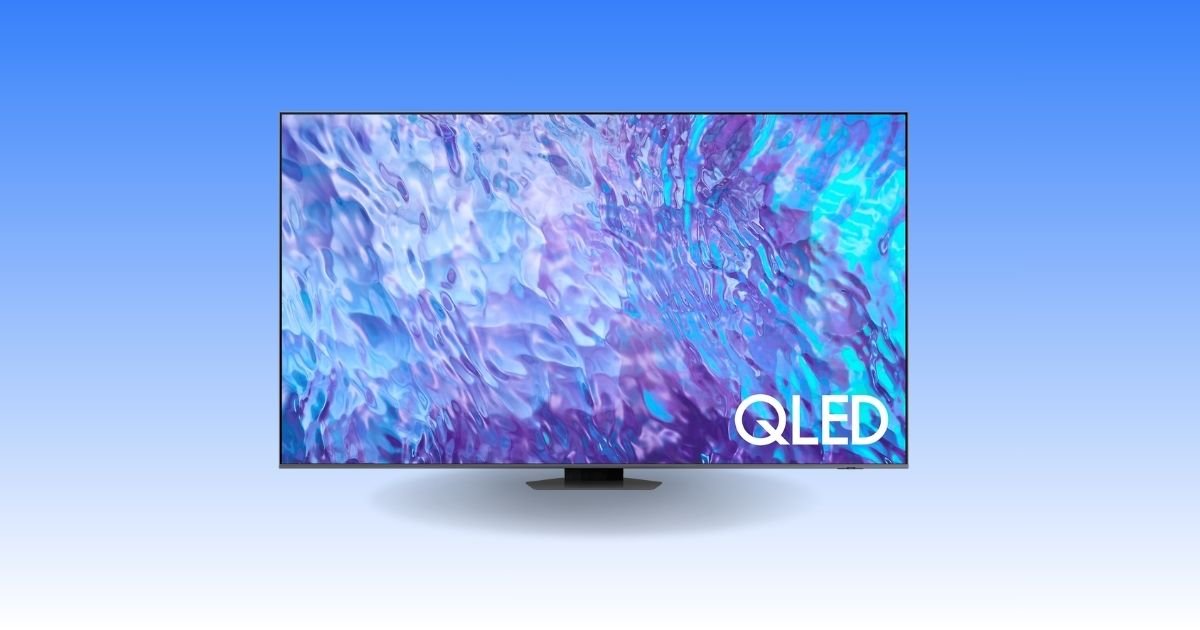
If your Samsung QLED TV looks blurry, fuzzy, or not as sharp as expected, you’re not alone. Many users assume there’s something wrong with the screen itself, but in most cases, blurry picture quality is caused by settings, source quality, or motion processing—not a defective TV.
The good news? Most Samsung QLED blur issues can be fixed in just a few minutes.
Common Reasons Your Samsung QLED Looks Blurry
Several factors can affect picture clarity on a Samsung QLED TV.
1. Low-Quality Content Source
One of the biggest reasons for blurry visuals is poor input quality.
Examples:
- Standard-definition cable channels
- Low-resolution streaming
- Weak internet causing compressed video
- Older DVDs or non-4K devices
Quick Fix:
Use 4K streaming apps, HD channels, or UHD-compatible devices whenever possible.
2. Incorrect Picture Settings
Samsung TVs often come with default settings that prioritize brightness over sharpness.
Settings That May Cause Blur:
- Auto Motion Plus
- Picture Clarity Settings
- Sharpness too low or too high
- Noise Reduction
Recommended Fix:
Go to:
Settings > Picture > Expert Settings
Then adjust:
- Sharpness: 10–20
- Picture Clarity: Off or Custom
- Noise Reduction: Off for HD/4K content
3. Motion Smoothing Issues
Samsung’s motion enhancement features can sometimes create a “soap opera effect” or blurry motion during sports and gaming.
Solution:
Turn off or reduce:
- Auto Motion Plus
- Blur Reduction
- Judder Reduction
For gaming, enable Game Mode for faster response and clearer movement.
4. Poor HDMI Cable or Input Device
A low-quality or damaged HDMI cable may reduce image clarity.
Fix:
- Use a certified high-speed HDMI cable
- Plug into HDMI UHD Color-supported ports
- Check console/streaming device output settings
5. Streaming Internet Speed Problems
If Netflix, YouTube, or other apps look blurry, your internet speed may be lowering video quality automatically.
Ideal Speeds:
- HD: 5 Mbps+
- 4K UHD: 25 Mbps+
Fix:
- Restart router
- Use Ethernet if possible
- Increase streaming quality settings in the app
Best Picture Settings for Samsung QLED
For sharper visuals, many users prefer:
Recommended:
- Picture Mode: Movie or Filmmaker Mode
- Sharpness: 10–15
- Contrast Enhancer: Low or Off
- Color Tone: Warm1 or Warm2
- Picture Clarity: Off
These settings often produce more natural and crisp images.
Could Screen Size or Viewing Distance Be the Problem?
Yes. Sitting too close to a large QLED TV can make content appear softer, especially if the source isn’t true 4K.
General Rule:
Sit about 1–1.5 times the screen size distance away for best clarity.
When Blur Might Be a Hardware Problem
Although less common, hardware issues can include:
- Panel defects
- Internal processing problems
- Backlight issues
Signs:
- Blur on all sources
- Permanent ghosting
- Uneven focus across screen
If this happens, a firmware update or Samsung support check may help.
How to Update Samsung QLED Firmware
Outdated software can impact picture processing.
Steps:
Settings > Support > Software Update > Update Now
Keeping firmware current can improve image clarity and motion performance.
Final Verdict: Why Does My Samsung QLED Look Blurry?
Most Samsung QLED blur problems are caused by source quality, motion settings, or picture configuration—not the TV itself.